Troubleshooting Problems When Launching Springbrook Enterprise
This document is intended to assist in resolving common issues with launching the Springbrook Enterprise Application.
Note: If you are using our Unified Login or Enterprise Connection (AKA SSO w/MFA), please see additional guidance on the login process here: User Authentication Guide
-
Clear the .Net Cache
-
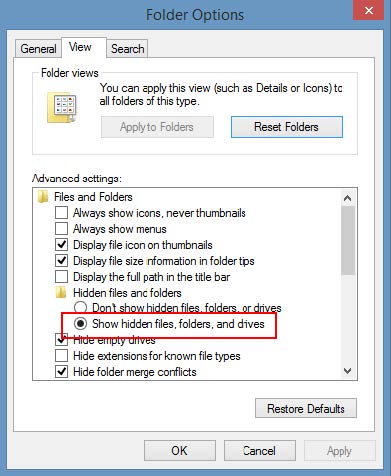
Open the Control Panel and ensure Show Hidden Files/Folders is enabled.
-
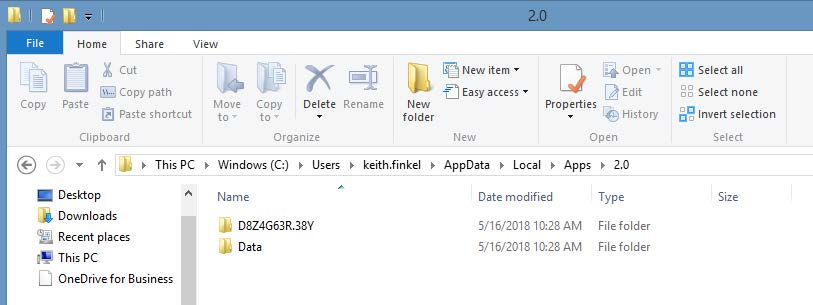
Browse to the following location: C:\Users\username\AppData\Local\Apps\2.0
-
Delete the entire 2.0 folder.
-
Re-launch Springbrook. The manifest files should re-deploy in their entirety and allow the application to launch successfully.
-
-
If you are still having issues, have your IT staff ensure the C:\Users\username\AppData\Local\Apps\2.0 location is added to your Anti-Virus software’s real-time exclusion list.
-
Make sure .NET 4.7.2 or higher is installed. Springbrook versions 7.18.7.0 and above will not launch properly without it.
-
We recommend launching the Springbrook Enterprise application from a current version of the Edge browser.
-
Legacy Edge versions may require you to enable the ClickOnce feature to run our application.
-
To launch the Springbrook application from other browsers, such as Mozilla or Chrome, you can install an extension for ClickOnce. Springbrook does not provide these extensions, but they can be found in the marketplace.
-
-
If you are receiving authentication errors on login when entering the correct credentials, make sure the system time is correct. If the time on your PC is off by more than five minutes, the system will not allow you to log in.
-
If a Springbrook user is not receiving the expected email after resetting their password, confirm that user is not set to "Out of Office" status in SS> Utilities> Out of Office Utility.
-
If you have completed your login successfully, but the expected applications are not available to you in the application portal, or you have attempted to launch the application, but it has not opened and no error was returned please check the following:
-
Verify that the application is not open, but just not visible on the desktop. The application may have opened on another monitor/display or may have opened to the system tray. There is a setting in user preferences for Default Form - None in Springbrook that can have the application open, but not on the desktop and you only see it is available in the system tray.
-
Verify that you are not attempting to launch an application that you do not have access to as you may be using an email address that is not assigned to an active user. Contact your local Springbrook Administrator to confirm, or check the local Springbrook log for the error "User is not authorized to access Springbrook####." To access your local log go to C:\Users\USERNAME\AppData\Local\Springbrook Software, Inc\7.18.7\Log.txt.
-